RoomSketcher for Windows
Create floor plans and home designs on your Windows computer. The app will automatically download to your device. If your download didn't start - click the button below.
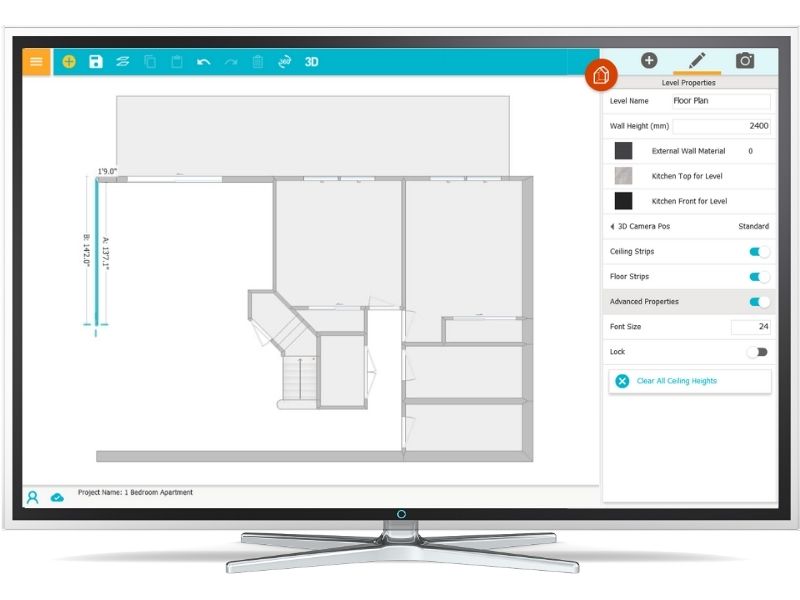
What Can I Do on a Windows Computer?
Create and edit professional floor plans with the full RoomSketcher app. You can start from scratch, trace a sketch or blueprint, convert a computer-drawn floor plan, or order a professionally drawn plan.
All your projects are saved in the cloud, so you can open them in the RoomSketcher app or in your web portal whenever you need.
Keep Work Flowing on the Go
It’s easy to move between devices and pick up your project wherever you are. Bring your laptop or tablet to a meeting, or share your designs with clients, friends, or family right from the RoomSketcher app.
If you’re working on an iPad Pro, you may also be eligible to try AI Capture, our new scan feature that turns real spaces into floor plans.
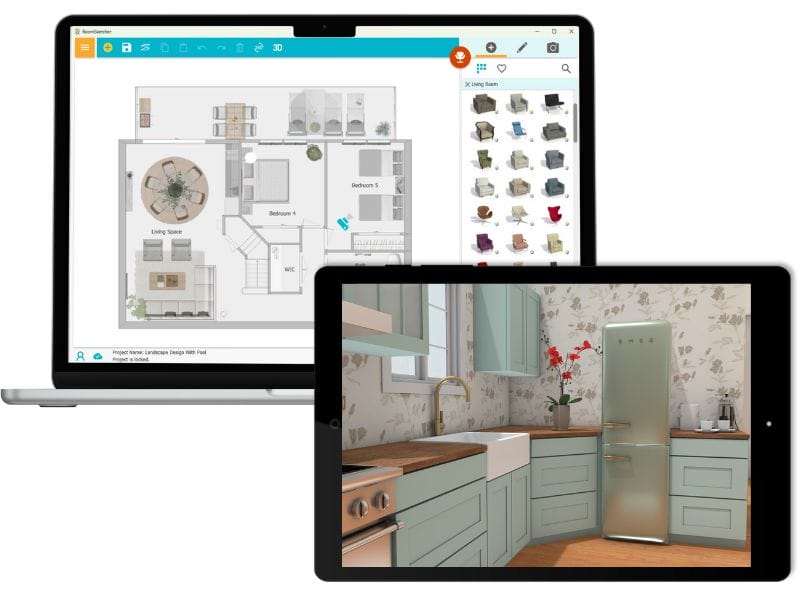
Also Available on These Devices
Access your projects across devices – your work syncs in real-time.

Frequently Asked Questions (FAQ)
On your computer, click this link and your download will start automatically. After the app has downloaded, it needs to be installed on your computer. If you are unsure how to install the app on your Mac or Windows computer, please check our help article.
On your tablet, go to the App Store (iPad) or Google Play Store (Android tablet), and search for RoomSketcher. Or use this link for iPads, and this link for Android tablets.
Yes, all your projects are stored in the cloud so you can easily access them across devices. The RoomSketcher app even works offline, so you don’t have to worry if you lose your internet connection. Projects sync up once you are back online.
At any time, sign in to your web portal from the browser on any device and see all your projects. You can see an overview of all the devices RoomSketcher is available on here.
With a Free subscription, you get access to basic features so that you can see just how easy it is to draw floor plans using the RoomSketcher app. For more powerful features, just upgrade to one of our subscriptions. Want to know what’s included? Take a look at the Free subscription overview.
To learn more about all our features, have a look at our features overview page.
Once you have downloaded and installed the app, you want to get going on drawing your first floor plan. This help article will show you how to do just that. If you need any help at all, please don’t hesitate to reach out to our friendly customer service team.
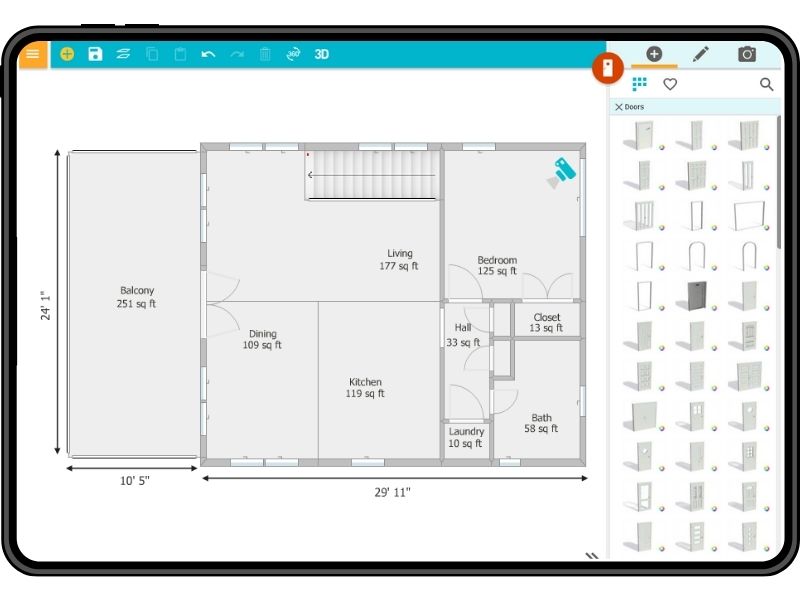
No, the app is not available on phones. The RoomSketcher app is available on Mac and Windows computers, as well as iPads and Android tablets. On your phone, you can sign in to the web portal in your browser, where you can see all your projects, convert, order, and generate floor plans. To draw floor plans, you need to be on a tablet or computer.